
Skills and Bundles
Skills Practice is an additional option that allows candidates to learn and practice skills before taking the skills examination. The skills available for practice may vary by state or program. The navigation and purchase process remain generally the same.
Skills Practice is available through the following practice modes:
- XR
- Web/Mobile
The Skills Practice walkthrough videos cover the controls necessary to perform a skills practice:
- Skills Practice (XR): Skills Practice (XR) - Credentia Self - Help Guides
- Skills Practice (Web): Skills Practice (Web) - Credentia Self - Help Guides
- Skills Practice (Mobile): Skills Practice (Mobile) - Credentia Self - Help Guides
Note: Skills Practice is an additional learning and practice option to build your confidence and support your preparation. Completing Skills Practice does not guarantee a passing result on the skills examination.
Access Skills Practice
To Access Skills Practice:
- Log in to the Credentia Platform.
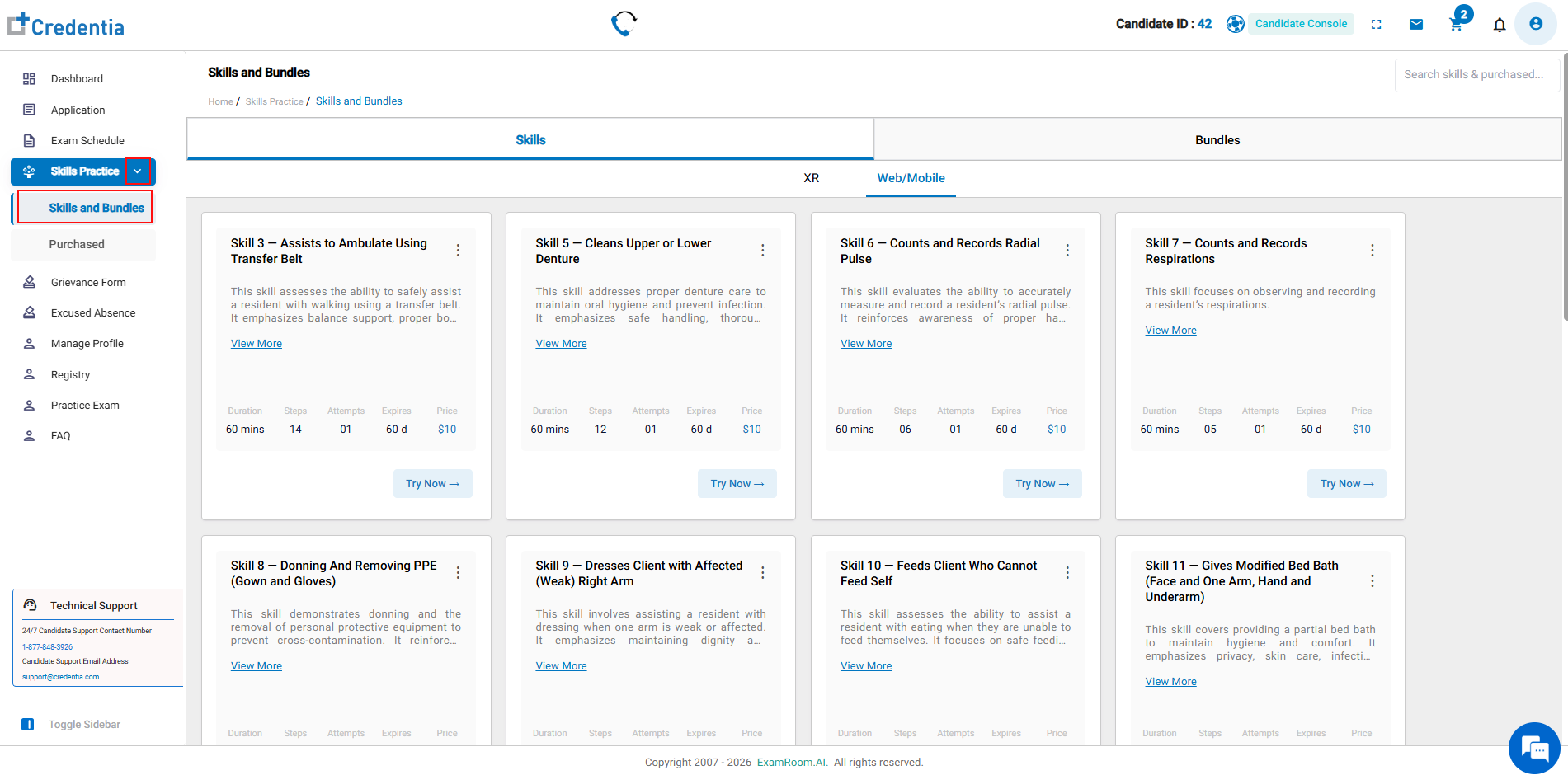
- From the navigation menu, select the Skills and Bundles option from the Skills Practice drop-down.
- The Skills and Bundles page displays the available skills and bundled options in the respective tabs.
- You can find all the skills practice available to you in both the Skills and Bundles sections.
- Using the Bundles option, you can purchase different skills as a bundle at a discount.
- By default, each purchase grants 1 attempt; you can buy more attempts in the Skills and Bundles sections if needed.
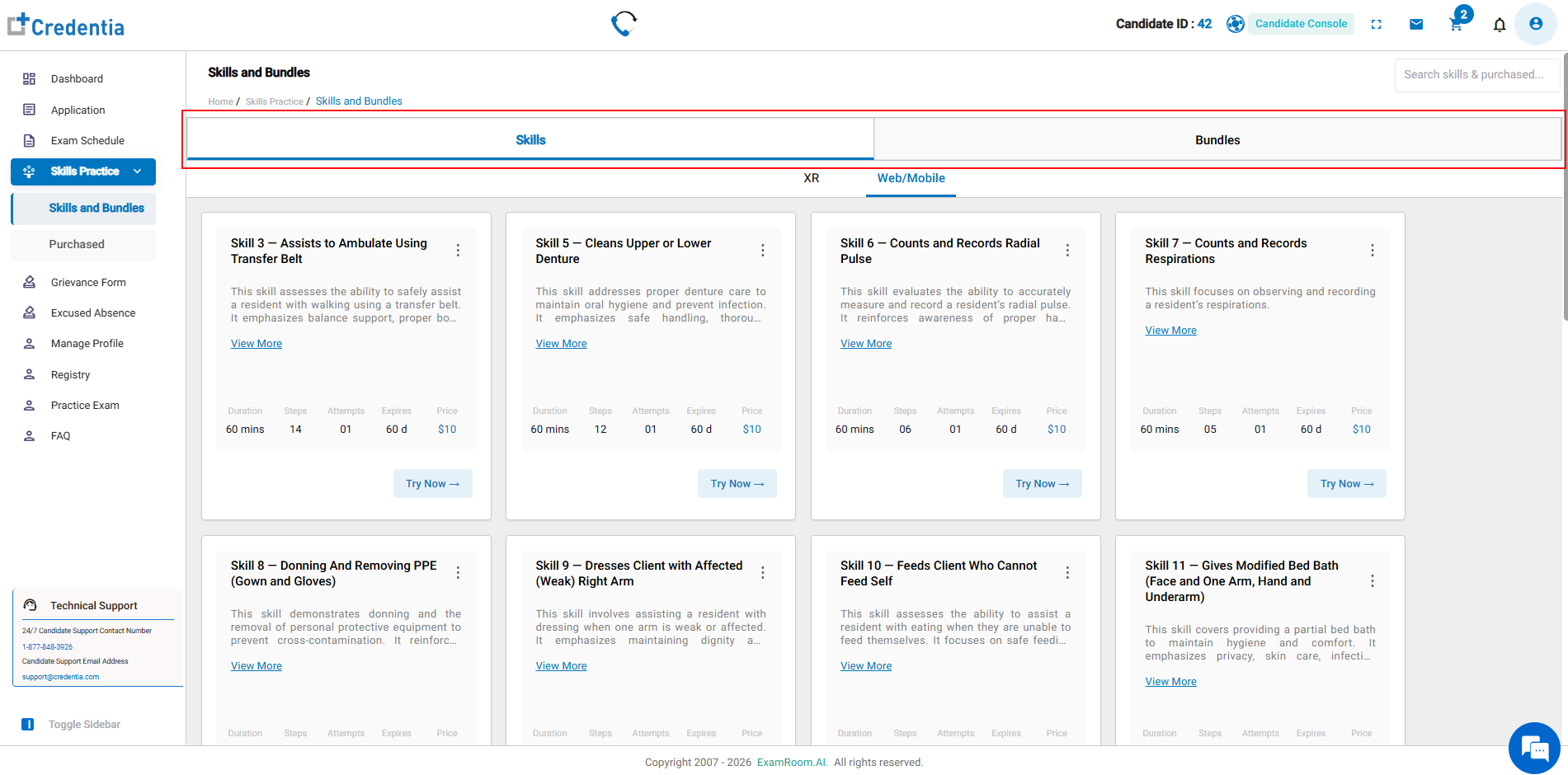
- Select the Skills or Bundles Tab.
- To purchase individual skills, select the Skills tab. See Purchase a Skill.
- To purchase Skills in Bundles, select the Bundles tab. See Purchase a Bundle.
Note:- Use an individual skill purchase when you want to practice one specific skill.
- Use a bundle when you want to practice multiple different skills included in the bundle.
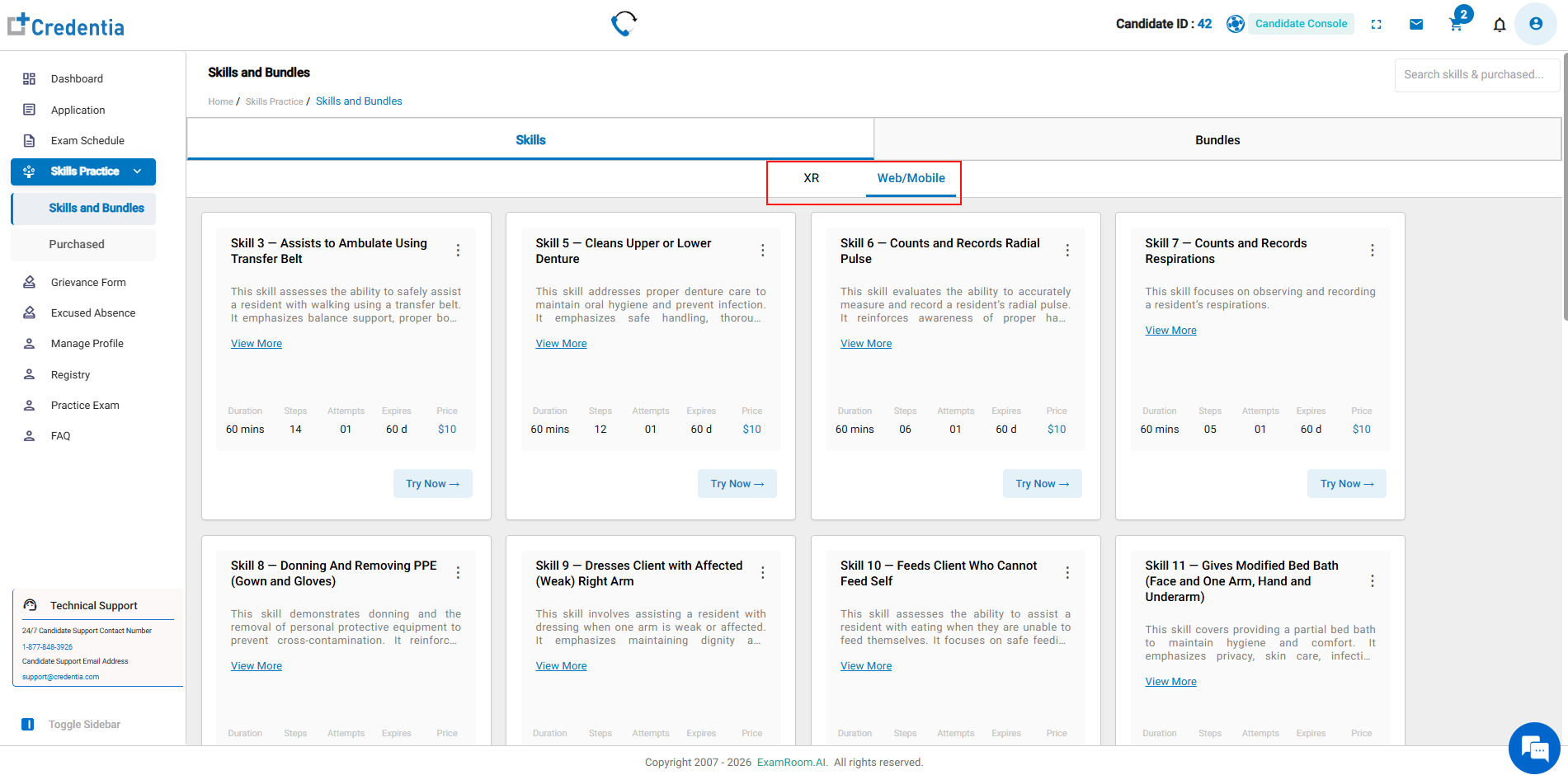
- Select a Practice Mode: Before selecting a skill or a bundle from the available list, ensure you select the practice mode you want to use: XR or Web/Mobile option
- XR: The XR option provides an immersive practice experience using a compatible XR device.
- Web/Mobile: The Web/Mobile option provides an interactive practice experience using a supported browser (computer/laptop) or mobile device.
Note: The available skills may vary by state or program.
Purchase a Skill
You can purchase an individual skill when you want to practice a specific skill.
- In the Skill tab, select the practice mode XR or Web/Mobile.
- Select a required skill from the list. You can use the search bar or scroll through the list to find the required skill practice.
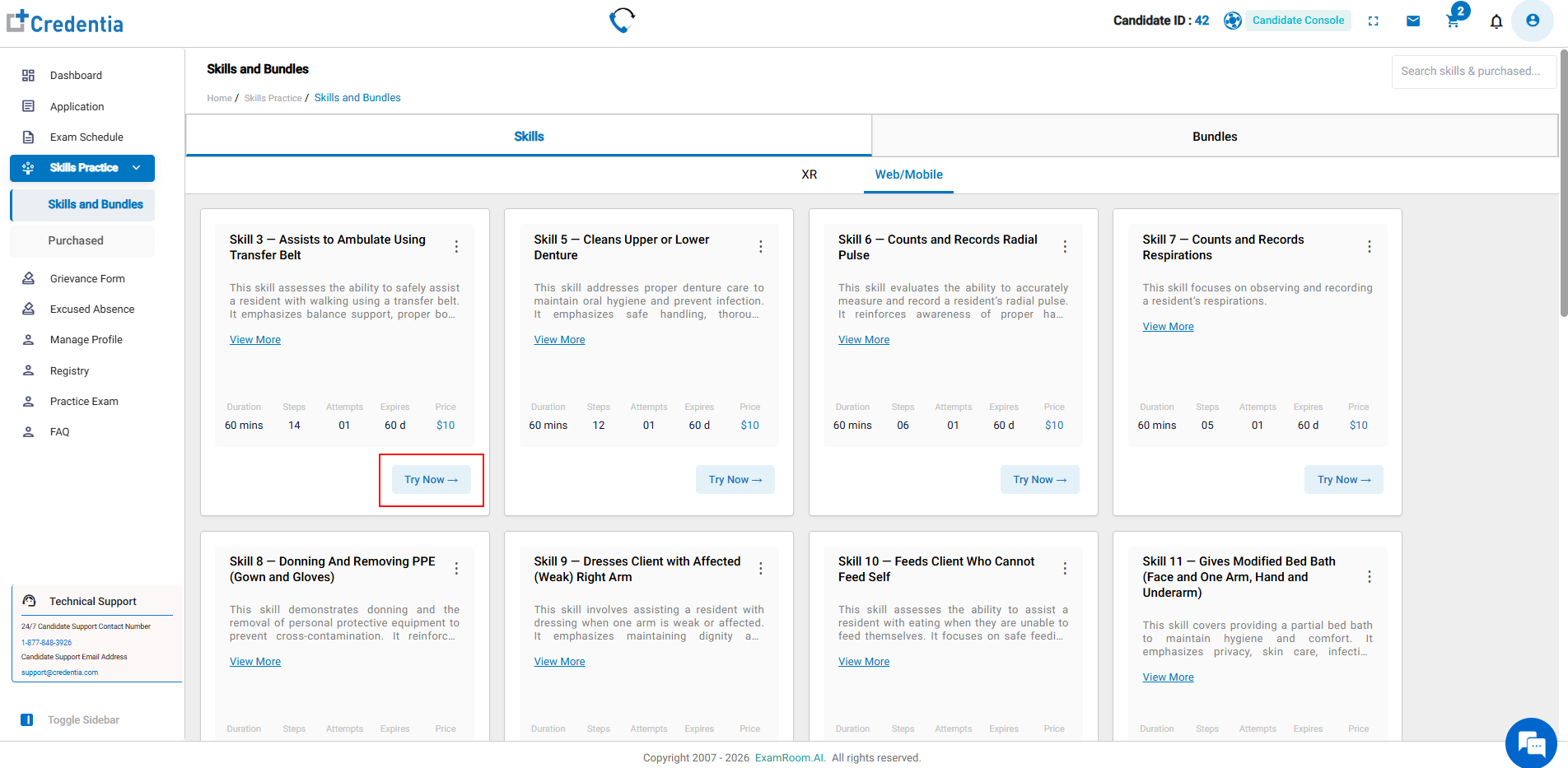
- Each skill card displays information such as:
- Skill name: The name of the skill.
- Skill description: A brief description.
- View More: Select to view complete details of the skill.
- Duration: The maximum duration allowed for one attempt.
- Number of steps: The number of steps of the skill from the official handbook.
- Attempts: Number of attempts provided with the initial purchase.
- Expiration period: Number of days provided to complete after purchase.
- Price: Price of the individual skill practice.
- Try Now: Select to proceed with purchasing the skill practice.
- To purchase an individual skill, locate the skill you want to practice.
- Select the Try Now button.
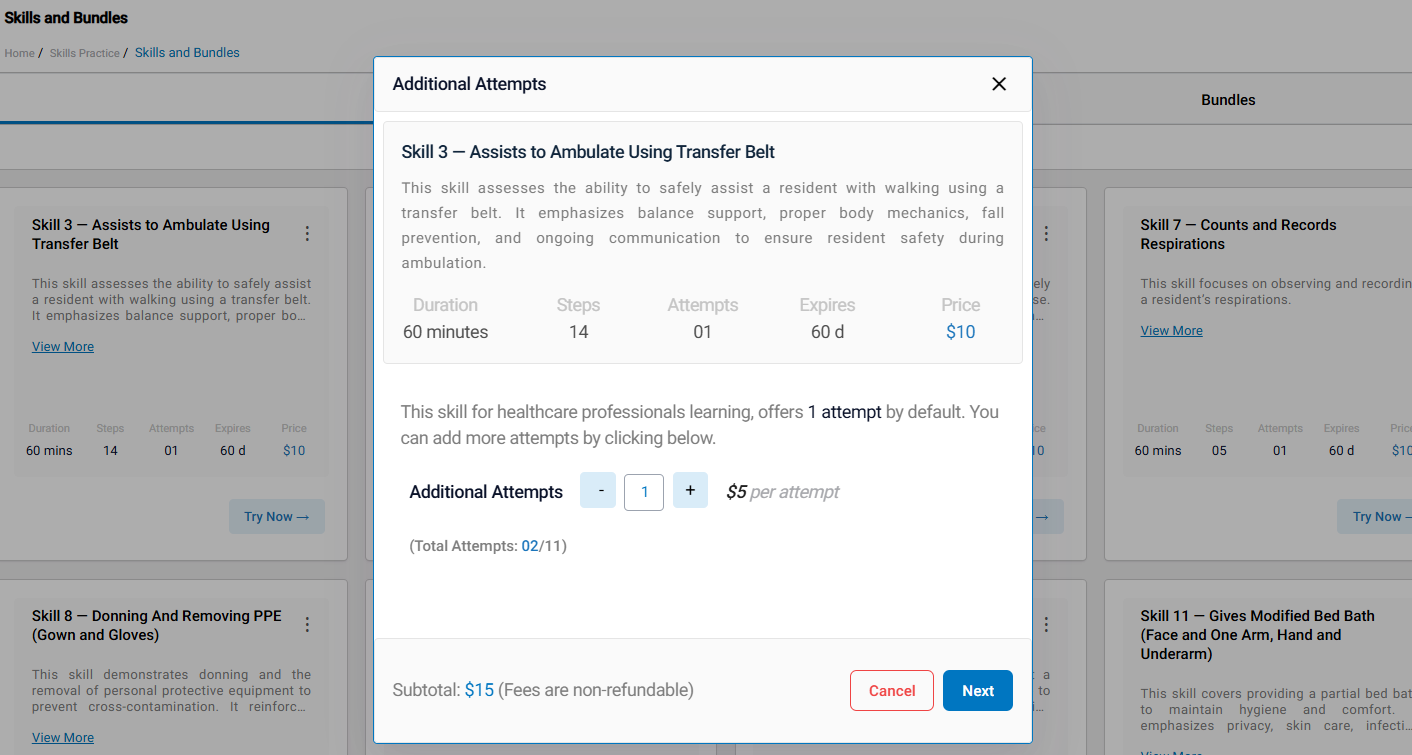
- Review the skill and purchase information. Select the number of attempts you want if you require additional attempts for the same skill.
- Click or tap the Plus icon to add additional attempts. You can add up to 10 in a single purchase, in addition to the default single attempt.
- Click Next to proceed.
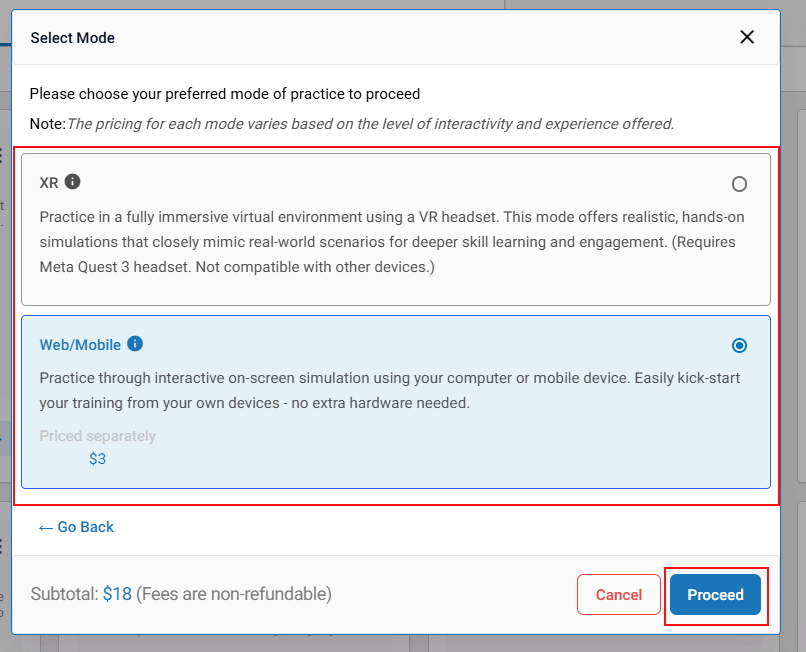
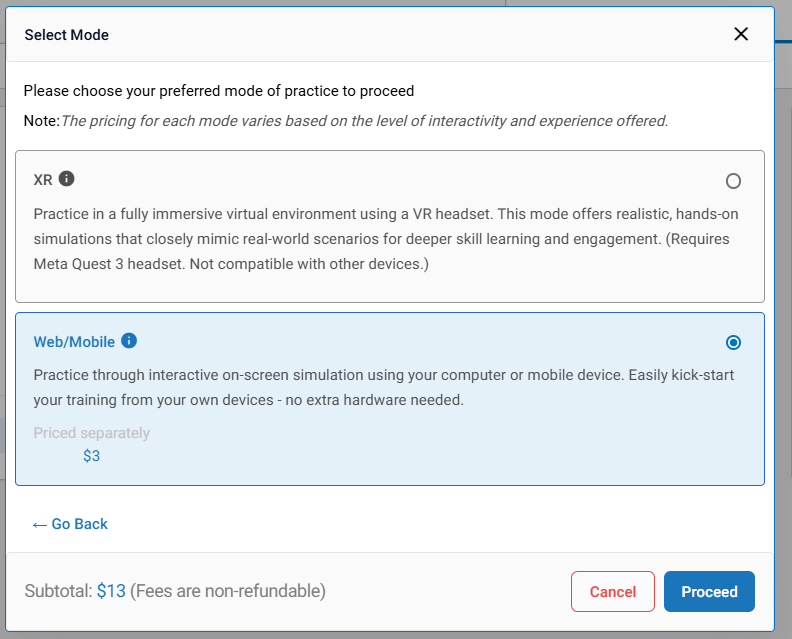
- Proceed with the purchase process, review the details provided, select the practice mode XR or Web/mobile, and then select Proceed.
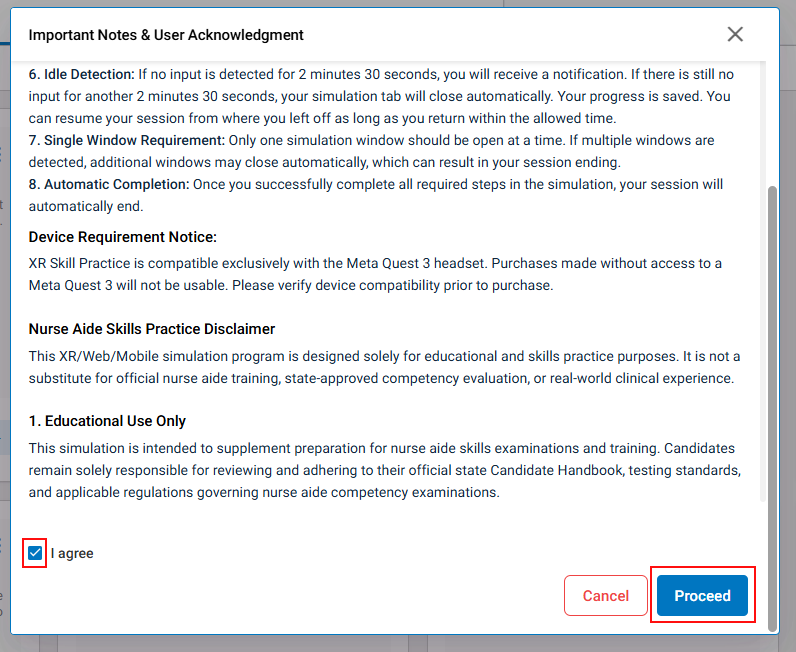
- Read the important notes and acknowledgment, select the checkbox “I agree,” select Proceed, and wait for the payment screen to appear.
- The selected skill will be added to the cart. Refer to the Complete the Payment section to complete the payment.
- After the purchase is completed, the skill is available in Purchased under Skills Practices.
Purchase a Bundle
Use Bundles when you wish to buy multiple skills at the same time. A bundle combines several skills into a single purchase and offers a discounted price compared to buying each skill separately.
To purchase a bundle:
- Open Skills and Bundles.
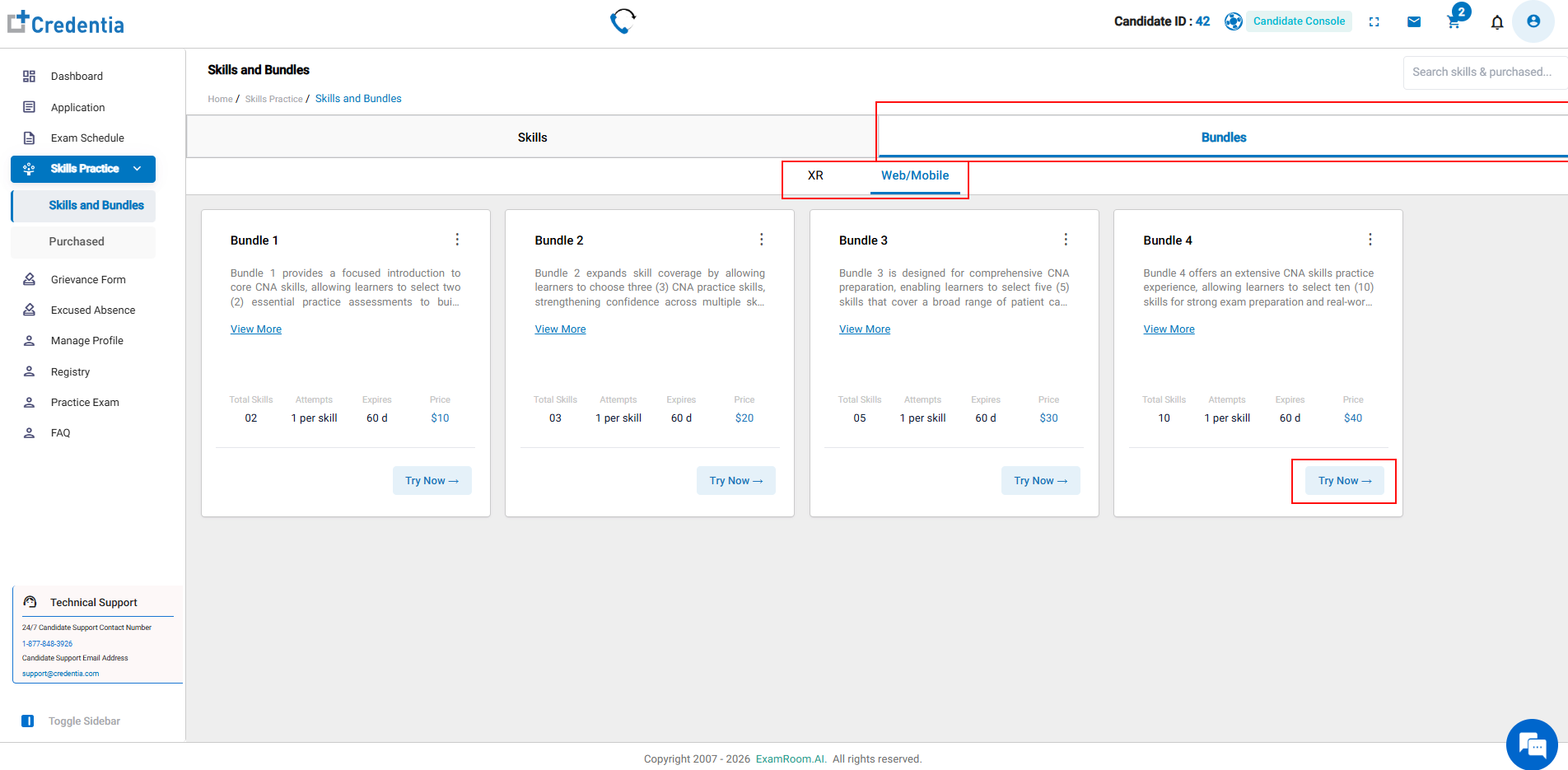
- In the Bundles tab, select the practice mode XR or Web/Mobile.
- Review and select the bundles from the available options.
- Select View More if you want to review the bundle details.
- Select Try Now to proceed.
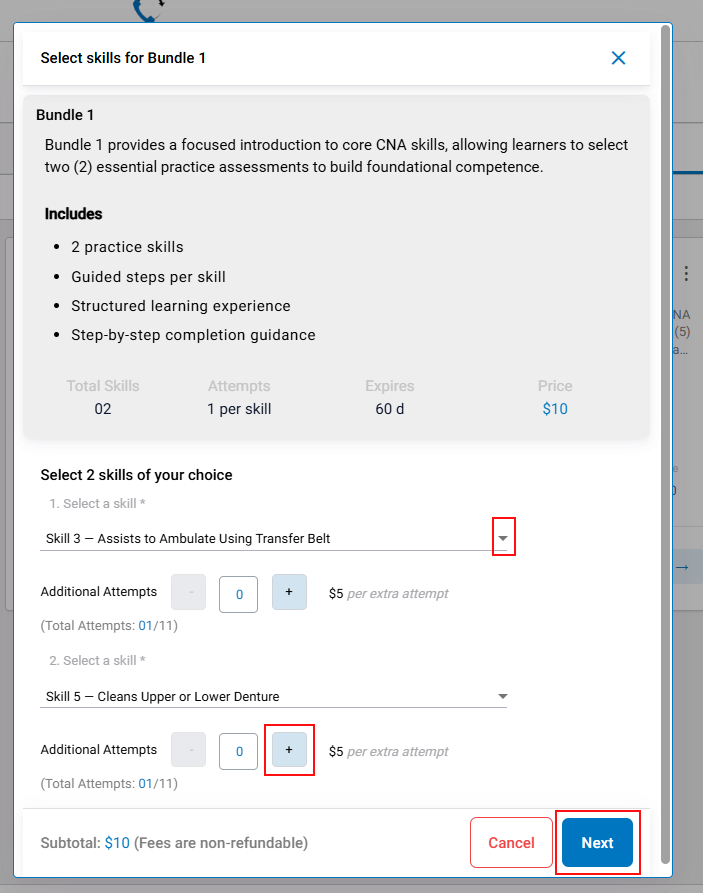
- Select the required number of skills in the Select Skill section in the bundle option.
- Review the selected skills and any additional attempts.
- Click or tap the Plus icon to add additional attempts. You can add up to 10 in a single purchase, in addition to the default single attempt.
- Click Next to proceed.
- Proceed with the purchase process, review the details provided, select the practice mode XR or Web/mobile, and then select Proceed.
- Read the important notes and acknowledgment, select the checkbox “I agree,” select Proceed, and wait for the payment screen to appear.
- The selected bundle will be added to the chart. Refer to the Complete the Payment section to complete the payment.
Note: The skills included in each bundle, number of skills, attempts, expiration period, and price may vary by state or program.
Complete the Payment
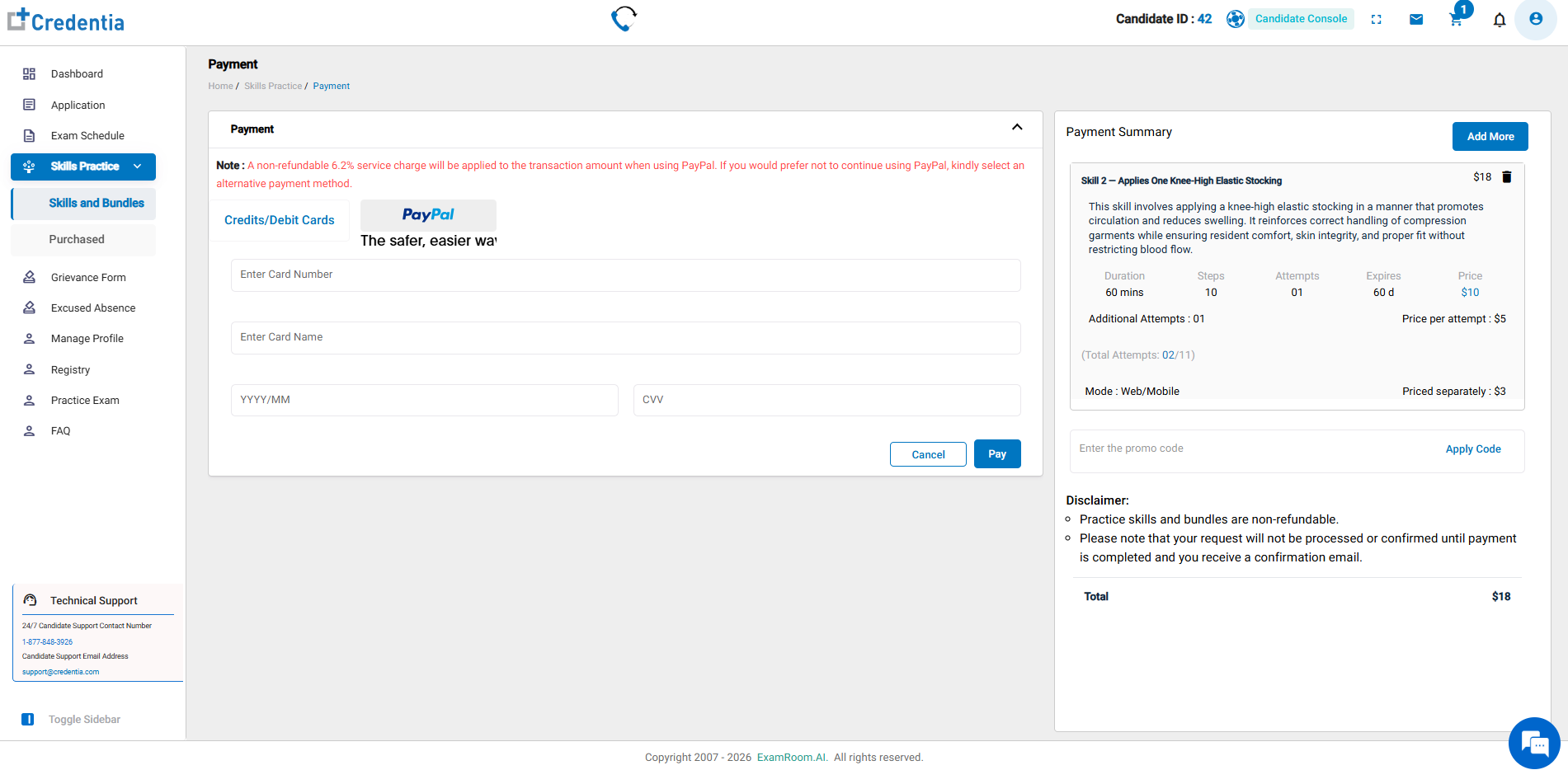
Once you choose the skill or bundle and set the practice mode, the payment page appears. Check the Payment Summary before finalizing your purchase.
- The payment summary can include:
- Purchased skill or bundle
- Selected skills
- Number of attempts
- Additional attempts
- Price
- Practice mode
- Device requirement information
- Enter the required payment information and click or tap Pay to complete the purchase.
Note: The platform displays applicable fees and charges during the payment process.