
Purchased
After completing a purchase, you can access your purchased skills from the Purchased section.
View Purchased Skills
To assess your purchased skills:
- Select Skills Practice.
- Select Purchased.
- Select Skills.
- Select XR or Web/Mobile.
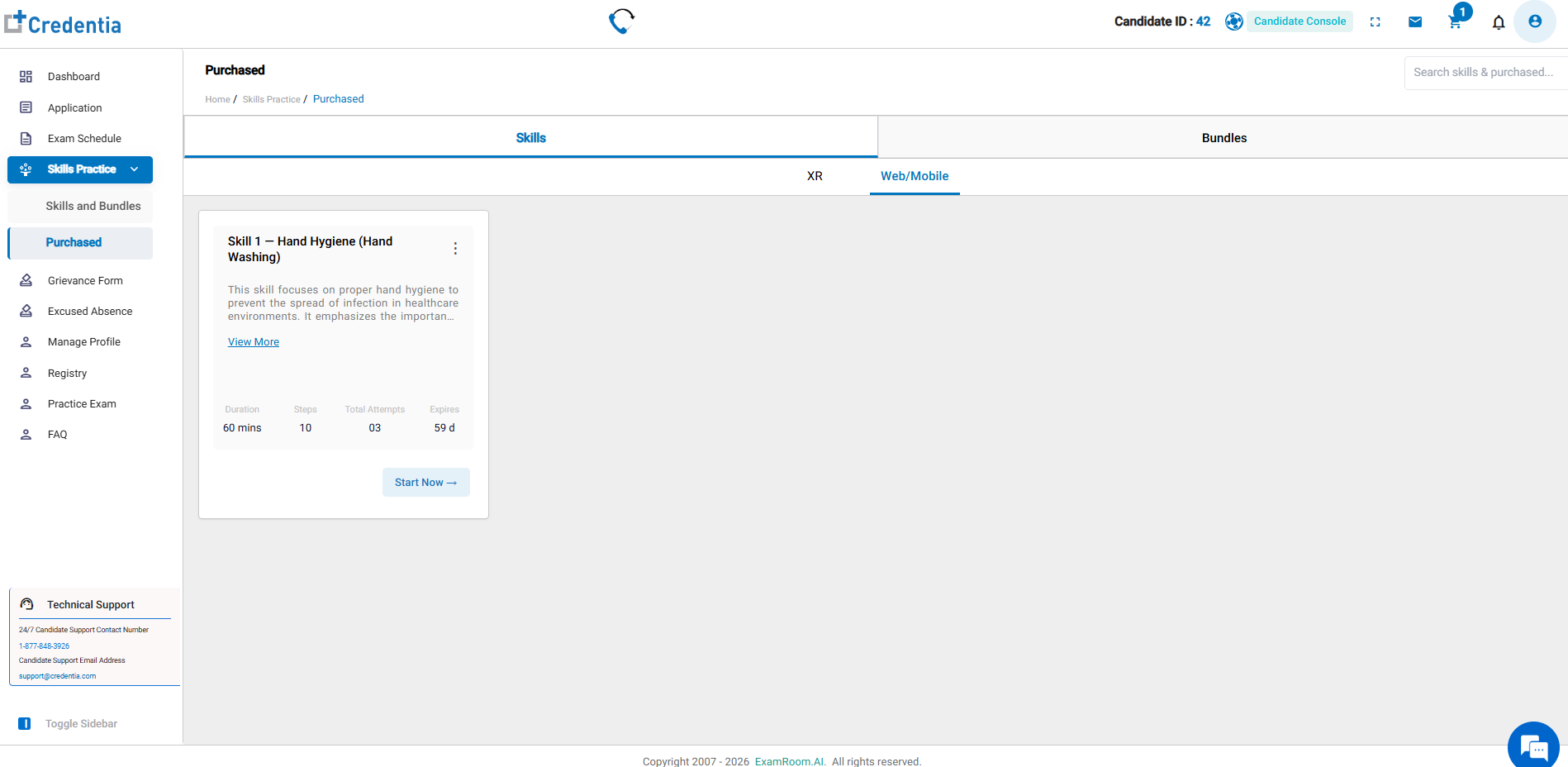
- Locate the skill you purchased in the Skills or Bubbles tab, then choose the practice mode, whether it was XR or Web/mobile.
- The skill card can display:
a. Skill name
b. Duration
c. Number of steps
d. Total attempts
e. Expiration period
f. View More
g. Start Now - Click or tap on View More to see detailed information about a skill before beginning practice. Check the available attempts and expiration details prior to starting the skill.
Start Skills Practice
After purchasing a skill, you can start the practice session from the Purchased section.
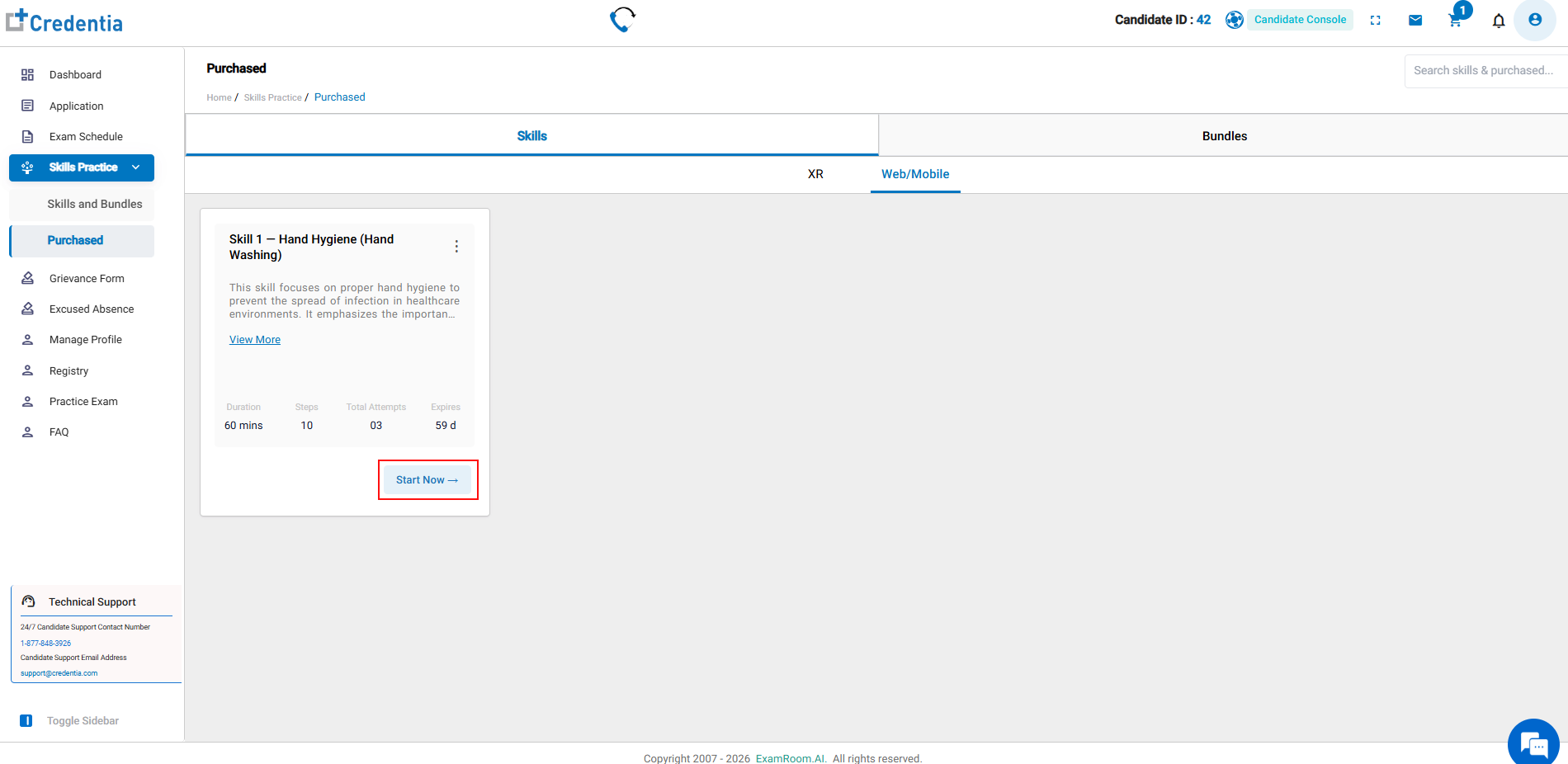
To start a skill:
- From the side menu, select the Skills Practice dropdown and select Purchased.
- Select Skills.
- Select XR or Web/Mobile.
- Locate the skill and select Start Now.
- See Starting the Simulation for Web/Mobile and XR.
To start a bundle:
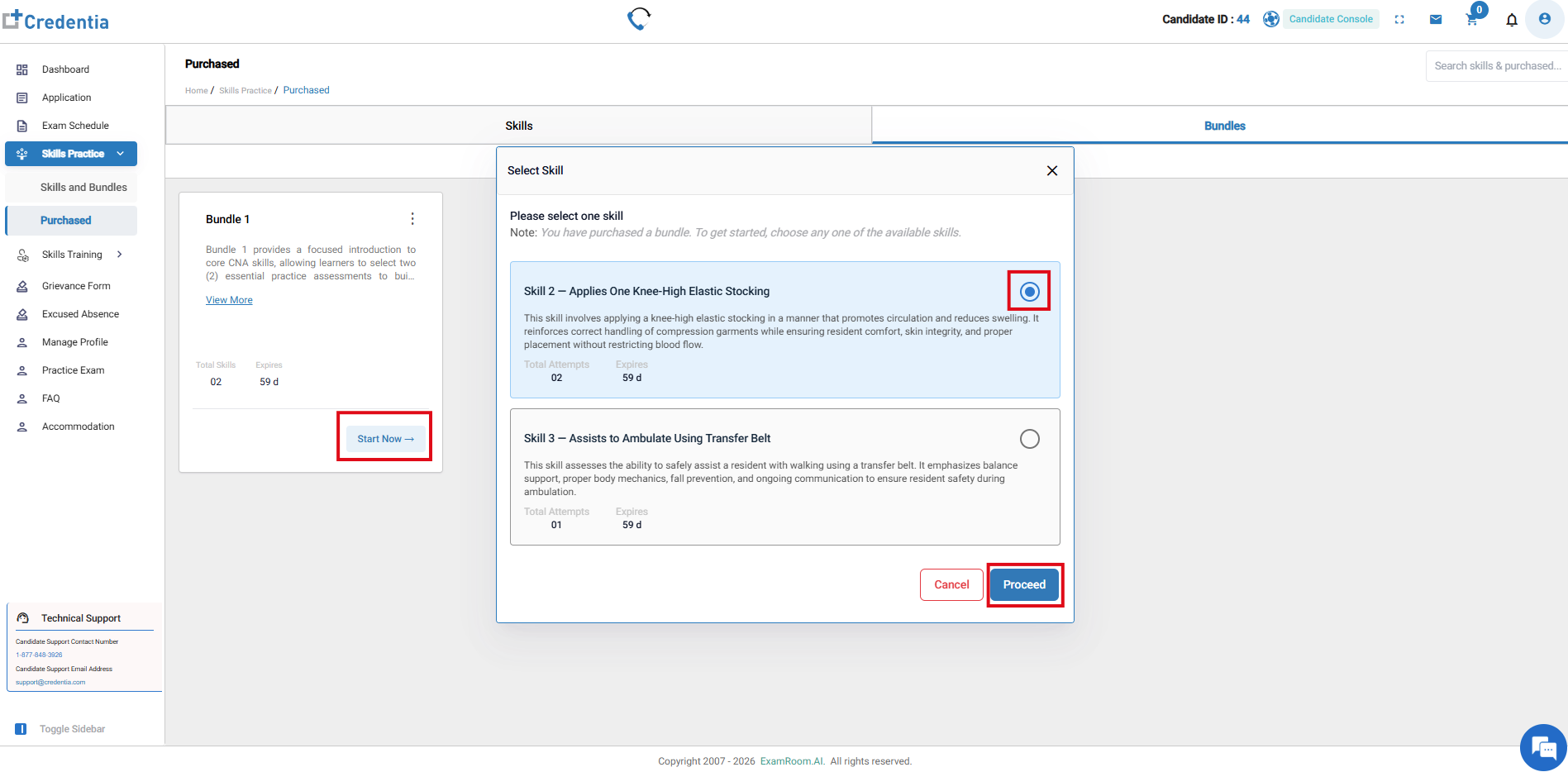
- From the side menu, select the Skills Practice dropdown and select Purchased.
- Select Bundles.
- Select XR or Web/Mobile.
- Locate the bundle.
- Select Start Now.
- Select the skill you want to practice and click Proceed.
- See Starting the Simulation for Web/Mobile and XR.
Starting the Simulation for Web/Mobile and XR:
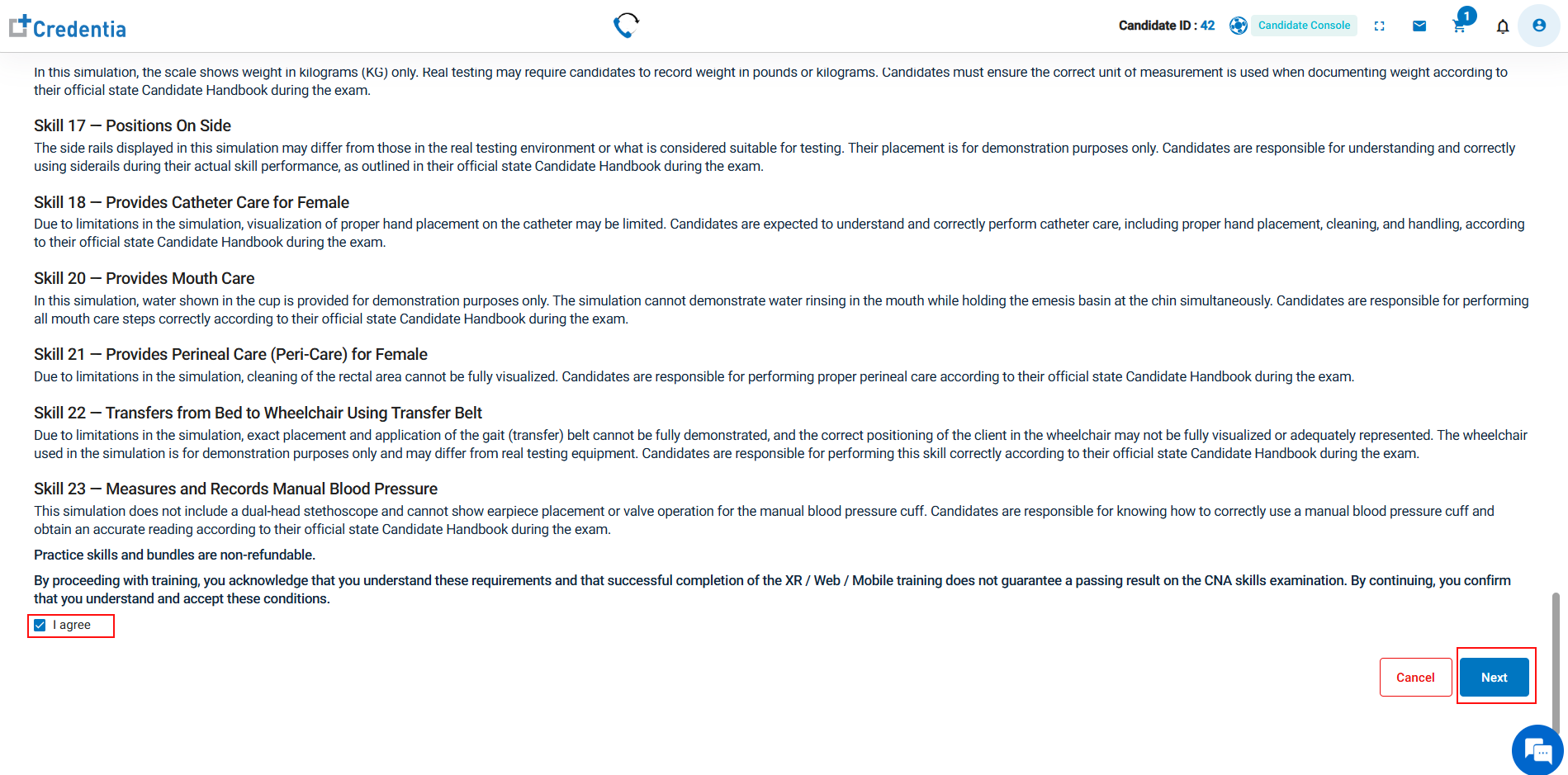
- You can scroll and read through the skill information and control details.
- Select the checkbox and click or tap Next.
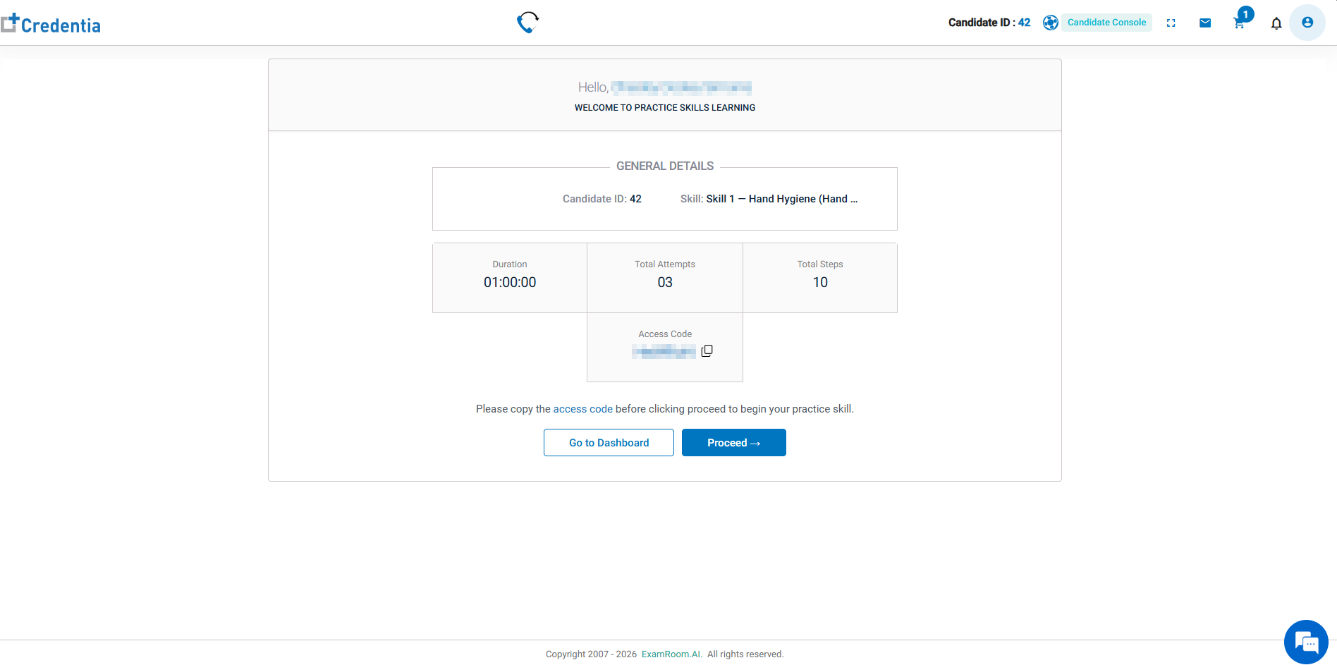
- The skills practice's general details and access code are displayed.
- The access code will be automatically applied.
- Click Proceed to start the skills practice.
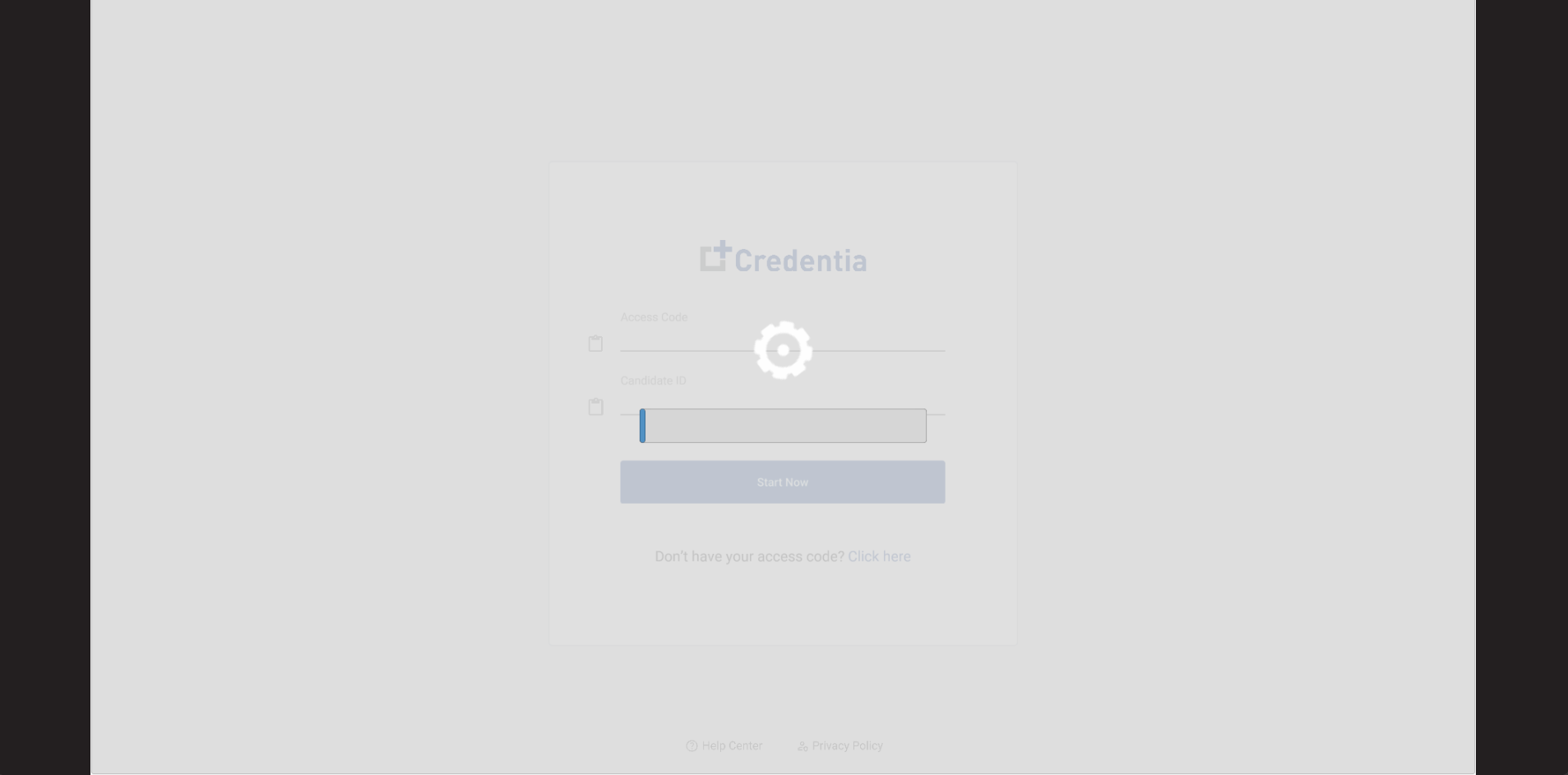
- Wait for a few seconds for a new window to open, and the skill practice will begin automatically.
- For Web/Mobile:
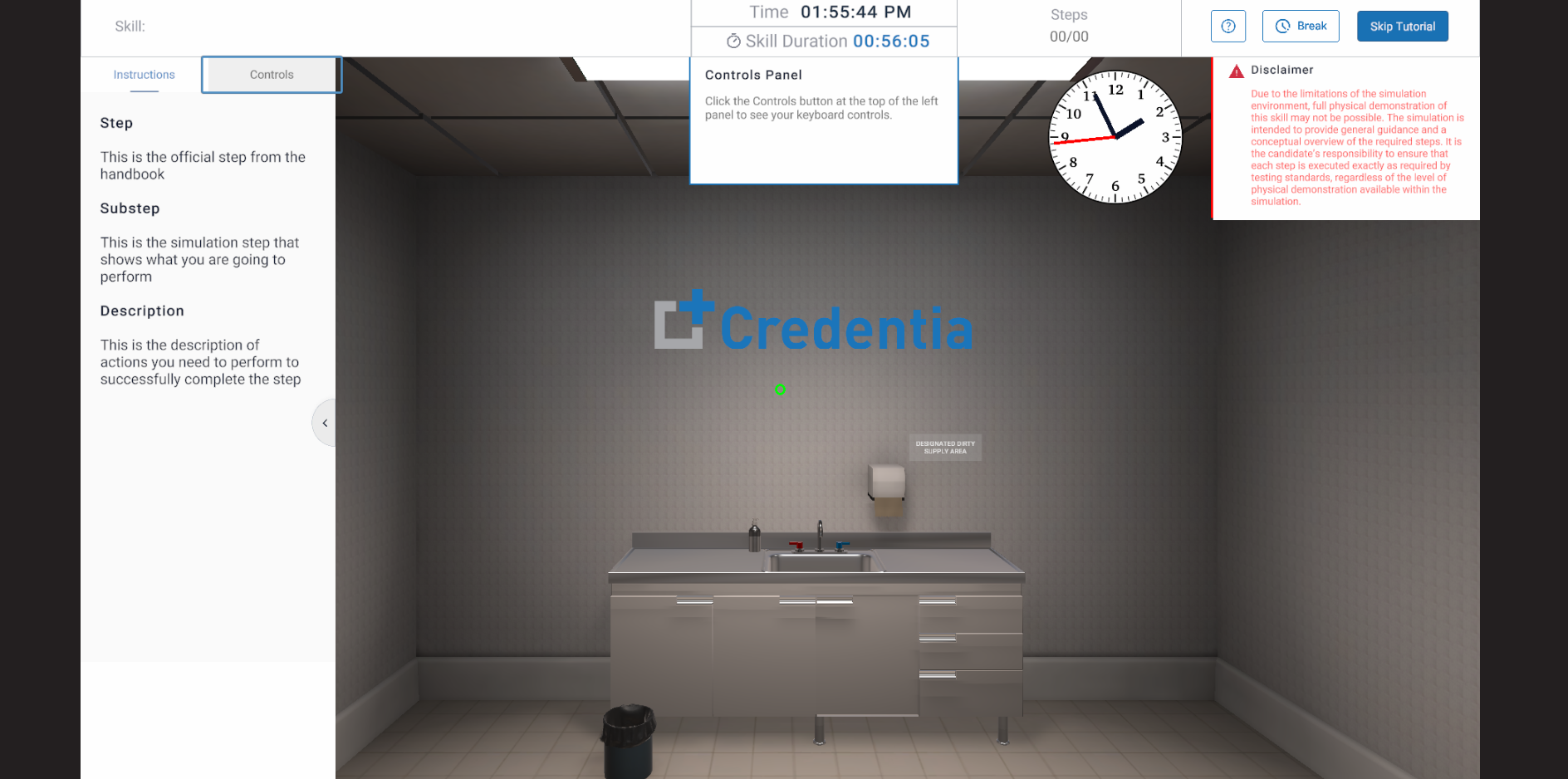
- You can go through the tutorials that appear on the screen to learn about the controls and then proceed with the practice.
- You can also go through walkthrough videos before beginning the session. Refer to the walkthrough videos: Skills Practice Controls.
- You can go through the tutorials that appear on the screen to learn about the controls and then proceed with the practice.
- For XR:
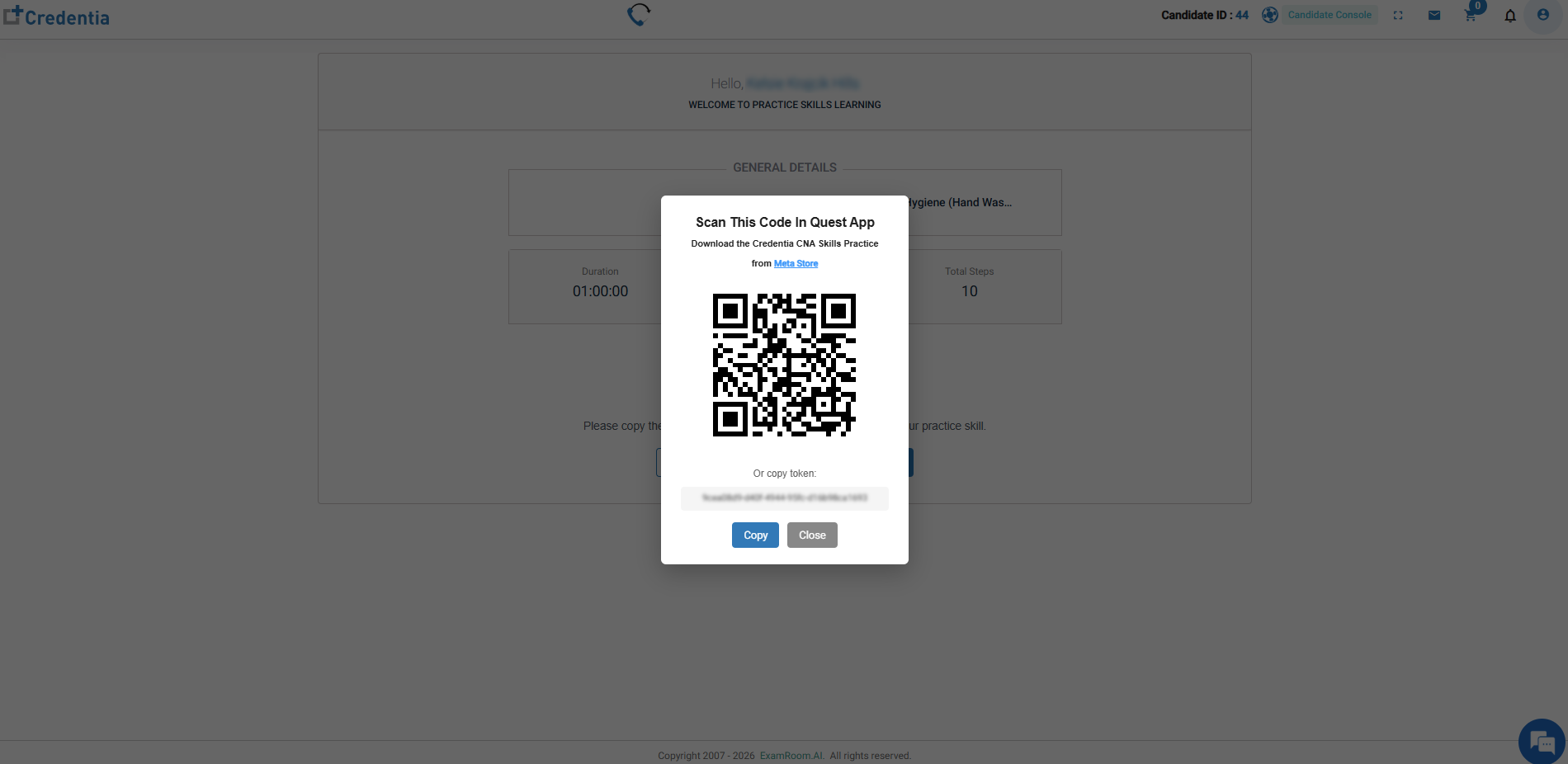
- After you click Proceed, you will see a QR code in the middle of the screen.
- After you see the QR code, run the Credentia CNA Skills Practice application, which you downloaded from the Meta Store on your Meta Quest 3 headset.
- After you see the application running, get closer to the QR code to scan and start the simulation.
- If the QR code is not scanned, you can enter the token shown under the QR code to the manual login page which you can open via the button placed on your right hand.
- After you click Proceed, you will see a QR code in the middle of the screen.
IMP Note:
- The system launches the practice session in a new browser tab, and it loads automatically.
- Make sure pop-ups or new tabs are not blocked by your browser.
Skills Practice Tutorial
When you start Skills Practice, a tutorial appears before the actual session. It guides you through navigating the practice environment. You have the option to complete the tutorial or skip it if a skip button is provided. See Skills Practice Controls.
Return to a Skills Practice Session
Once the actual skills practice session has started, you can leave the session and return to it later. If you close the practice window or become disconnected after starting the session, you have 30 minutes to return and continue the session.
To return:
- Return to the Credentia candidate platform.
- Select the Skills Practice dropdown from the side menu and select Purchased.
- Locate the skill.
- Select Start Now.
- Continue the session if it is still within the allowed return period.
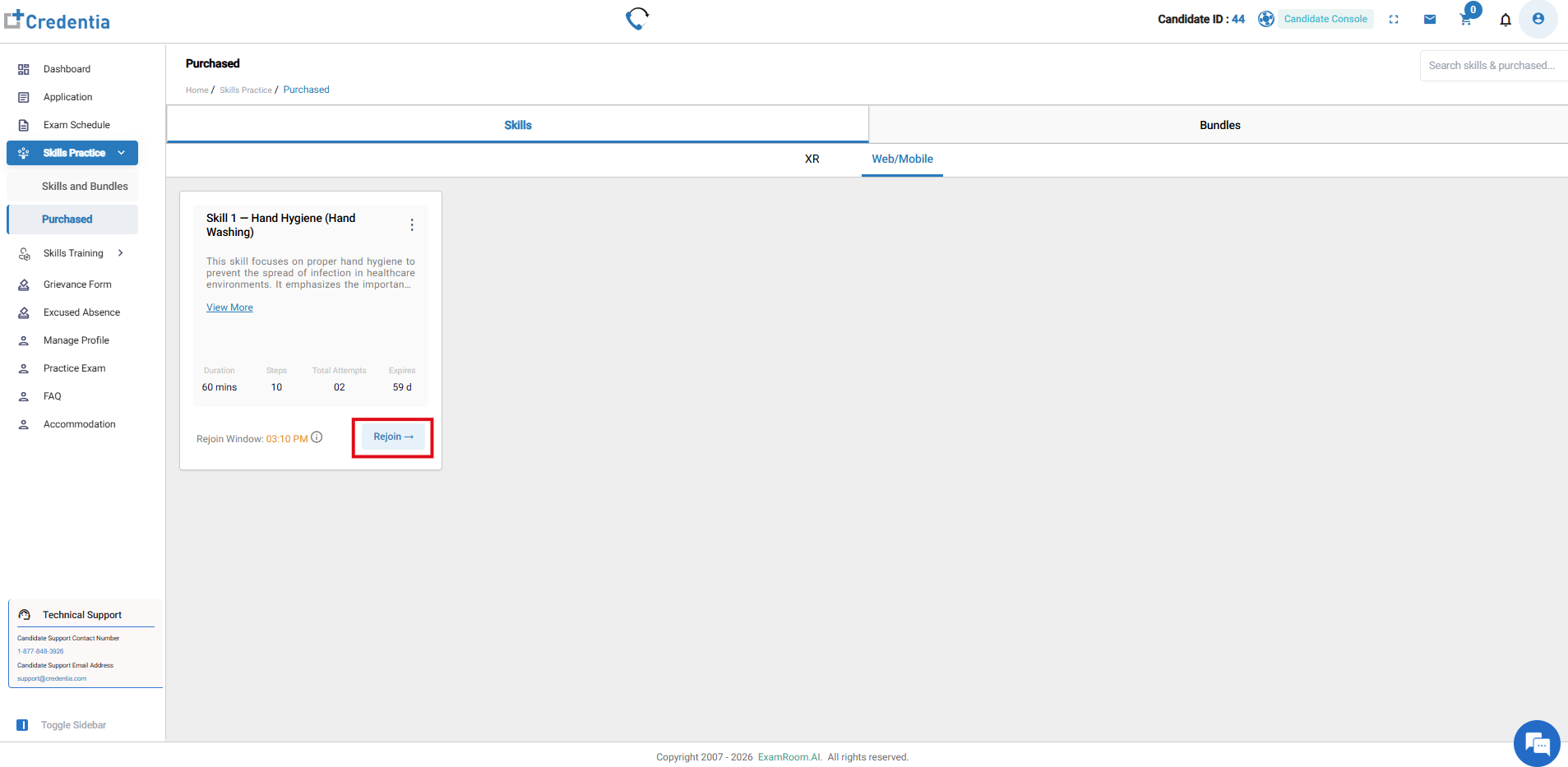
Note: If you do not return within 30 minutes, the practice session ends.
Skills Practice Controls
The actual controls used during Skills Practice are explained in the Skills Practice Walkthrough videos.
The walkthrough video provides tutorial guidance for the available practice environments so that candidates can understand how to interact with the simulation before performing a skill.
1. Web Skills Practice Controls
2. Mobile Skills Practice Controls
3. XR Skills Practice Controls
Skills Practice Purchase Options – Quick Reference
| If you want to: | Use this option |
| Practice one specific skill | Skills |
| Practice the same skill more than once | Additional Attempts |
| Practice multiple different skills | Bundles |
| Practice using an XR device | XR |
| Practice using a computer or mobile device | Web/Mobile |
Important Information
- Skills available for practice may vary by state or program.
- Select XR or Web/Mobile before selecting the practice option.
- Use Skills to purchase an individual skill.
- Use Bundles to buy multiple different skills at once. However, you will still perform each skill individually, not as part of a group exam.
- Additional attempts can be added when you select an option.
- Review the displayed price before completing a purchase.
- Review the number of attempts and expiration period before beginning practice.
- The practice session opens in a new browser tab after you proceed; wait a few seconds for the session to load automatically.
- Once the on-screen tutorial is completed or skipped the actual skills practice begins and if you close the session or get disconnected and if you do not return within 30 minutes, the session will end, and your attempt will be recorded.
- Skills Practice is an additional learning and practice option and does not guarantee a passing result on the skills examination.
- After the practice session begins, you have 30 minutes to rejoin if you close the session or get disconnected.